Almost every organisation has a folder of old portraits. Team headshots from a few years ago, speaker photos from a past conference, founder pictures taken on a phone. They are often small, cropped tightly and shot in a shape that does not suit today’s layouts. Yet they are usually the only photos available when a new website, brochure or event page needs them.
Two AI techniques make these photos usable again: upscaling to get more resolution, and outpainting to change the shape of the frame. Used in the right order and with the right checks, they can give an old portrait a second life without making the person look unlike themselves.
Table of Contents
Why portraits are the hardest images to fix
People are extremely good at noticing when a face looks wrong. A landscape can lose a little texture and nobody will mind. A portrait that gains slightly different eyes, a smoother jawline or invented hair strands immediately feels off, even if viewers cannot say why.
That is why portraits deserve more caution than any other kind of photo. Every AI step should be followed by a close look at the face, compared directly with the original.
Step one: upscale with faces in mind
Old portraits are often too small for modern screens. An upscaler can enlarge them while keeping edges crisp, but it does this by predicting missing detail. On faces, that prediction can go wrong. Common problems include:
- Eyes, mouths or noses that change shape slightly.
- Skin that becomes waxy and loses its natural texture.
- Hair, lashes or stubble that the tool invented.
- Glasses frames or jewellery with warped or doubled edges.
To increase image resolution without softening faces, keep the process controlled. Duplicate the original, decide the final display size, apply a single upscale pass and compare the result with the source at matching size. Then zoom in on the eyes, mouth and hairline. If anything looks different from the real person, try a gentler setting or accept a smaller final size.
Keep the person recognisable
A useful test is to show the original and the upscaled version to someone who knows the person. If they hesitate or say the new version looks a little off, trust that reaction. Recognisability matters more than sharpness.
Step two: change the frame with outpainting
Once the portrait has enough resolution, the next problem is shape. A tight vertical headshot rarely fits a wide website banner, a speaker card with space for text or a horizontal video thumbnail.
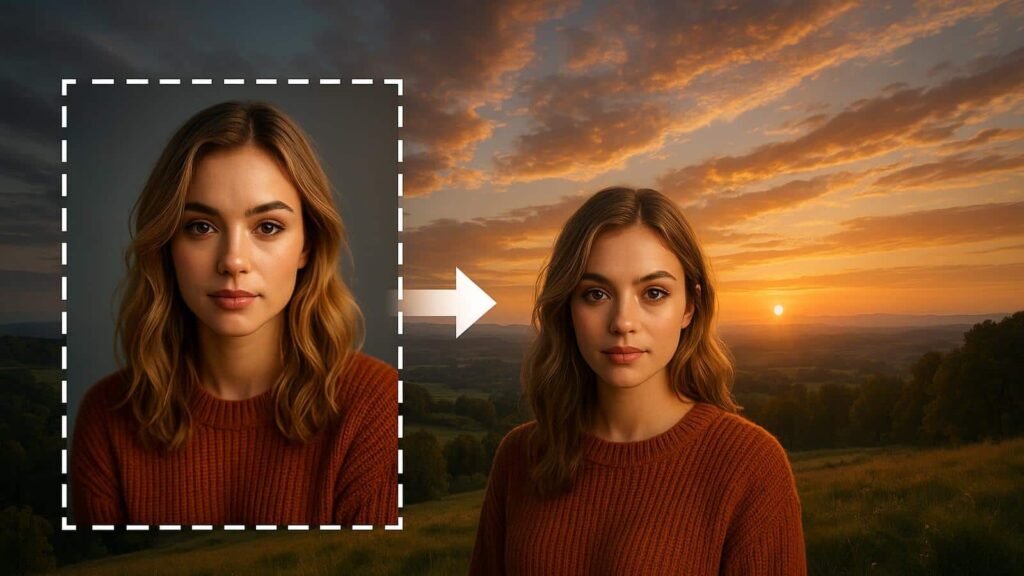
Cropping cannot add space, and stretching distorts the face. AI outpainting for new aspect ratios solves this by generating new background around the original image. The face and composition stay untouched, while the tool fills the margins with matching light and texture.
How to outpaint a portrait well
- Set the canvas to your target ratio before you start.
- Place the portrait where the final layout needs it, for example, on one side to leave room for a name and title.
- Use the expand option and choose the new ratio.
- If the tool accepts a prompt, describe the margins as a simple continuation, such as “plain studio background” or “soft office background”.
- Generate a few versions and choose the cleanest.
- Inspect the seam where the old and new pixels meet.
Simple backgrounds work best. A plain wall or soft blur is easy for the tool to extend. Busy scenes with furniture, windows or other people are more likely to produce strange shapes.
Order matters
Upscale first, outpaint second. If you outpaint a small image and then upscale everything, the generated margins and the original face are both enlarged together, which can make the seam more visible and give the tool more chances to alter the face. Upscaling the clean original first gives the outpainting step a solid, high-resolution base.
When to stop and reshoot
Some portraits are not worth saving. If the face is blurred, the head is cut off or the person’s shoulders are missing, the tools will have to invent those parts. Invented features on a real person are risky, both for quality and for honesty. In those cases, a new photo is the right call.
Frequently asked questions
Can AI make an old phone portrait look professional?
It can improve resolution and fit the photo to new layouts, but it cannot change the original lighting or focus. Check the face carefully after each step.
Is outpainting safe for professional headshots?
Yes, as long as only the background is extended and the face stays untouched. Keep the new background simple.
Why does my upscaled portrait look waxy?
The upscaler may be smoothing skin texture. Try a lighter setting or a smaller enlargement.
Final thoughts
Old portraits do not have to stay in the archive. Upscale carefully with the face as your priority, extend the frame with simple, natural backgrounds and check every result against the original. The aim is always the same: a better-fitting photo of the same recognisable person, ready for whatever layout comes next.